
Talent Llama + Teamtailor Integration
Talent Llama’s integration with Teamtailor streamlines the entire hiring workflow by automatically syncing candidates between platforms. Hiring teams can import and invite candidates to interview from any stage in the Teamtailor pipeline, eliminating manual exports and triggering AI interviews at the right time.
As interviews are completed, results and candidate statuses flow instantly back to Teamtailor, keeping it as the single source of truth. Your recruiters can review evaluations, advance top candidates, or reject directly from Talent Llama. The result: less admin, faster screening, and a smoother experience for both teams and candidates.
Before you begin: Like anything worth doing, integrations can take a little time. We don't anticipate it taking more than 30 minutes, but you might want to have a system expert and/or system administrator to assist in the completion of this integration.
Connect Teamtailor to Talent Llama
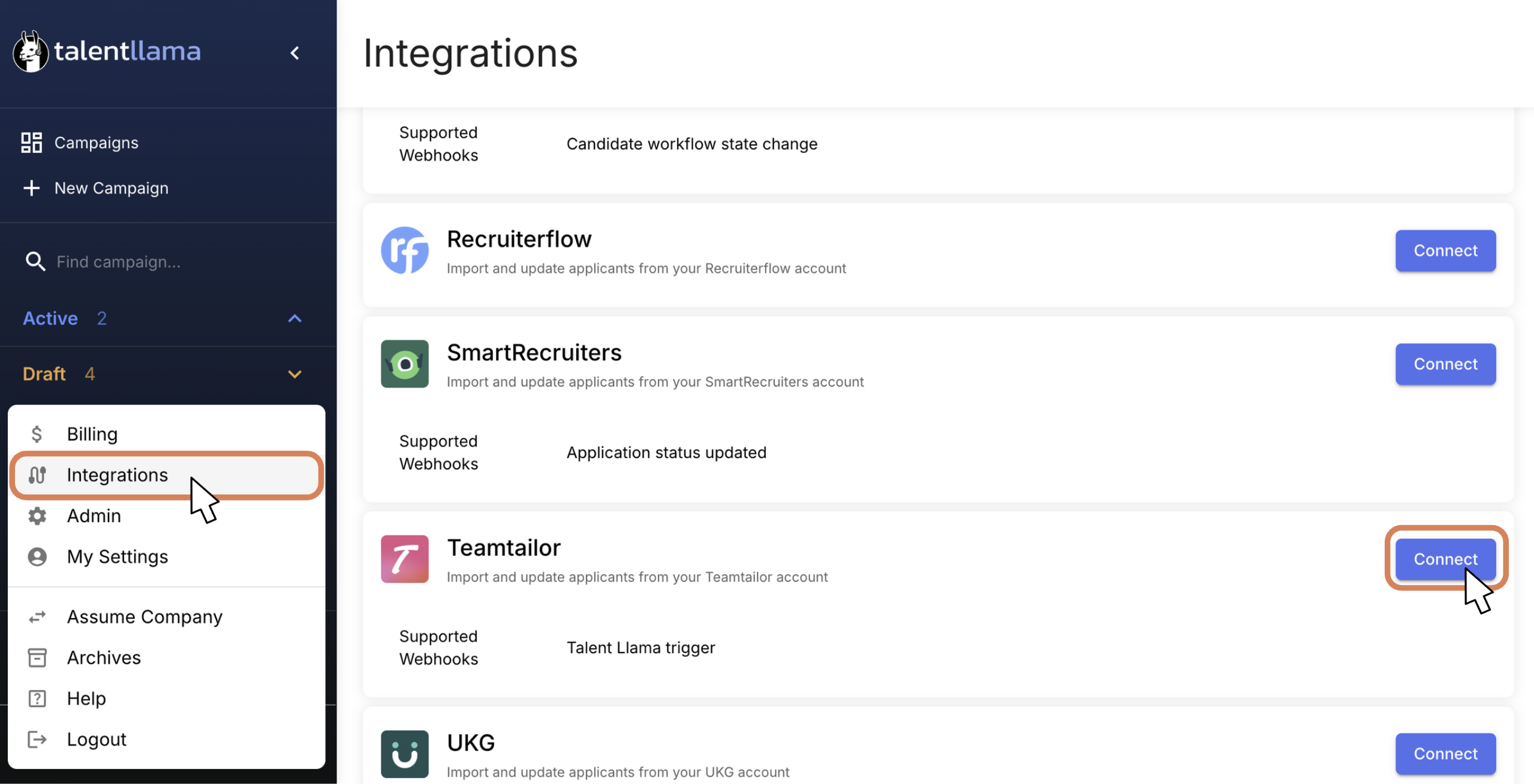
Step 1: In the bottom-left corner, click the three dots ( ⋯ ), select Integrations, then click Connect next to Teamtailor to start the integration.
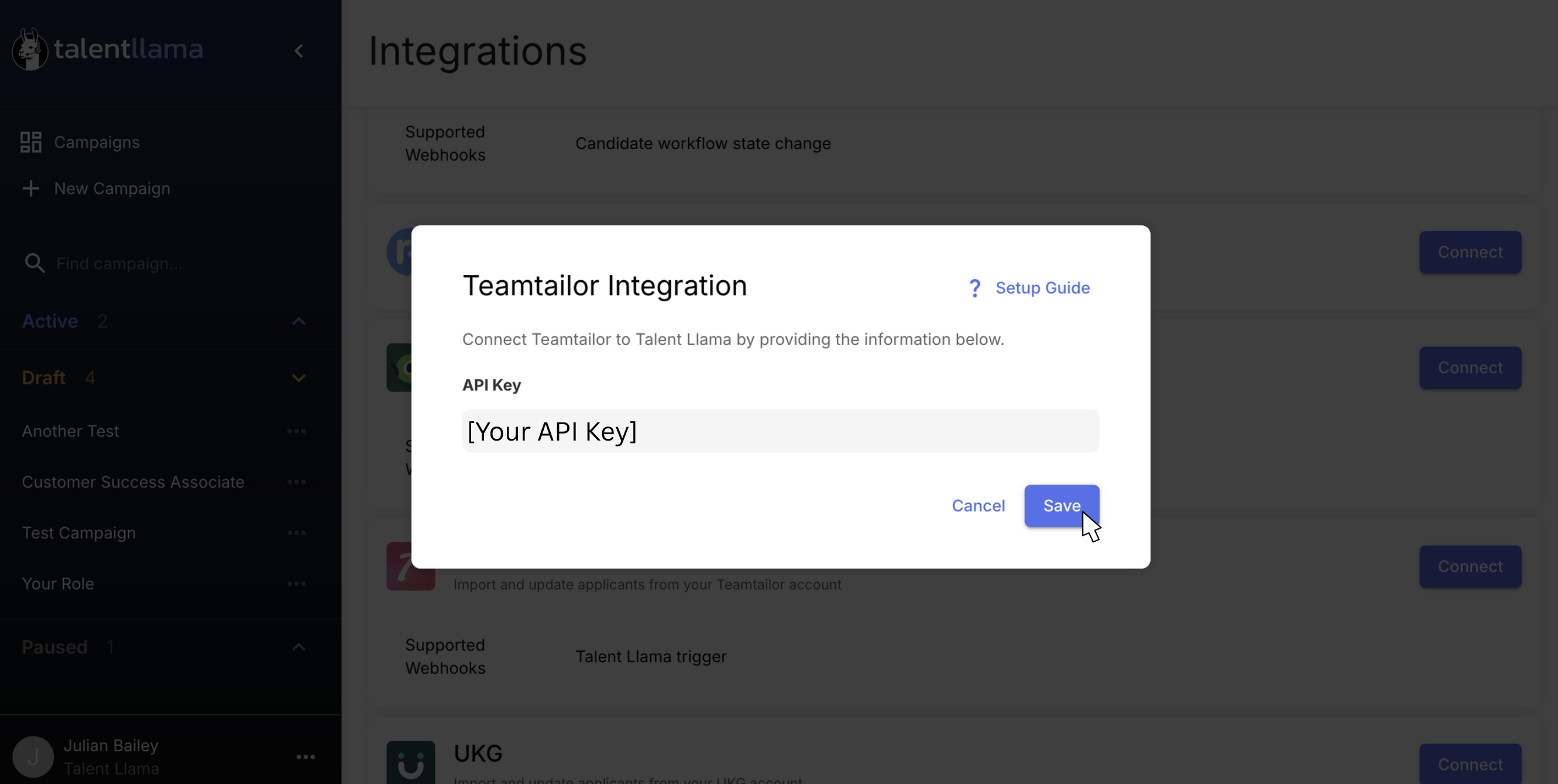
You'll then see a window requesting you to enter an API Key. These are done on the Teamtailor side of things, but we'll talk you through it.
Create your Teamtailor API Key
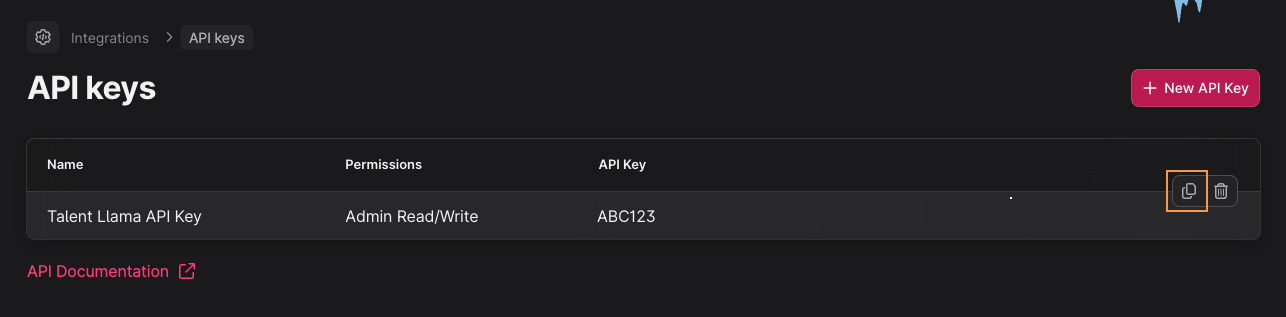
Step 2: In Teamtailor, go to Settings -> Integrations -> API keys. Click New API Key, and configure the following fields:
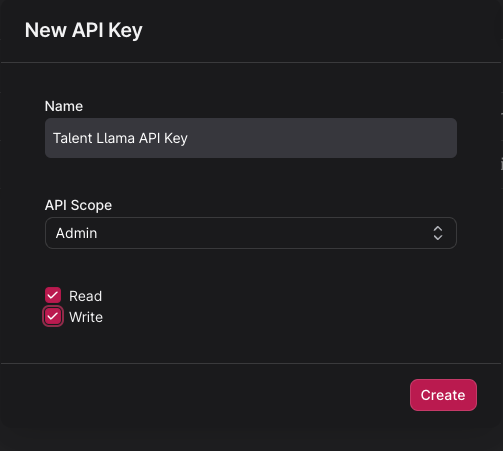
Copy the newly created API Key and head back to Talent Llama.
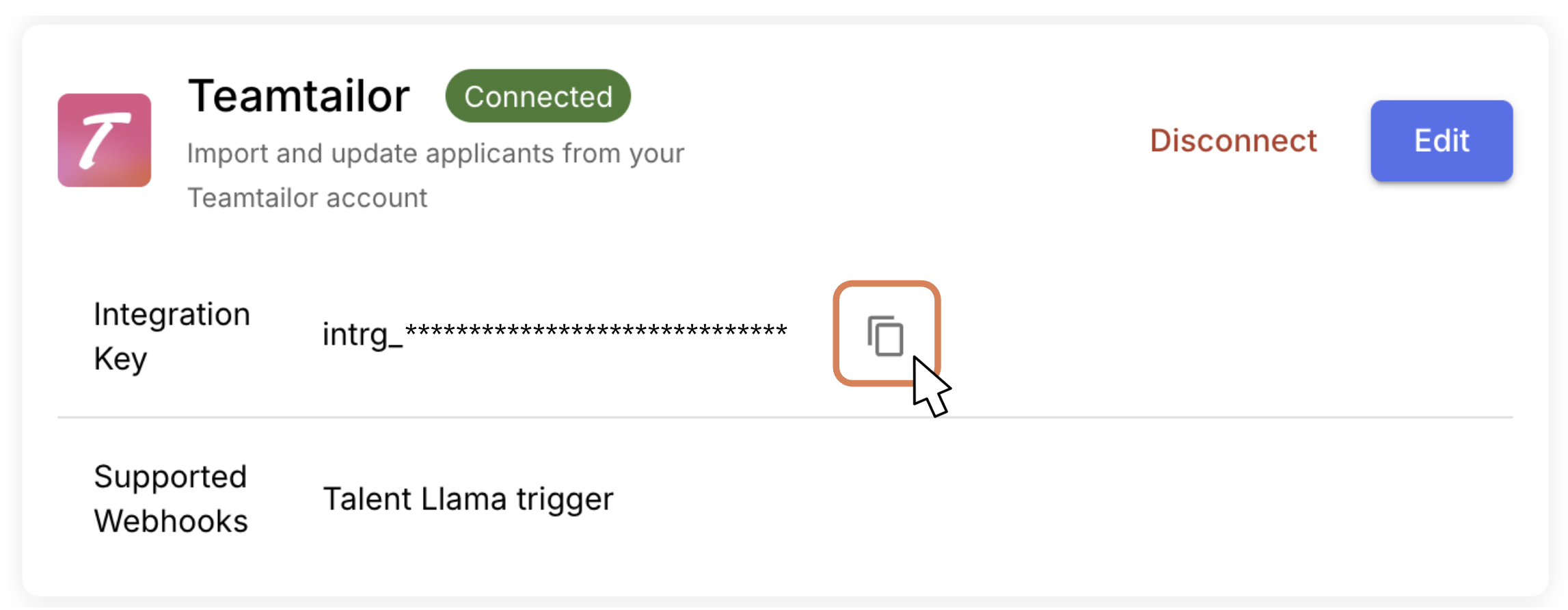
Step 3: Back in Talent Llama, enter the API Key you previously created and copied. Click Save. When you've saved it, you'll see an Integration Key appear, and a line for Supported Webhooks. Copy the Integration Key, and store it in a safe place, as you'll need that for the next step.
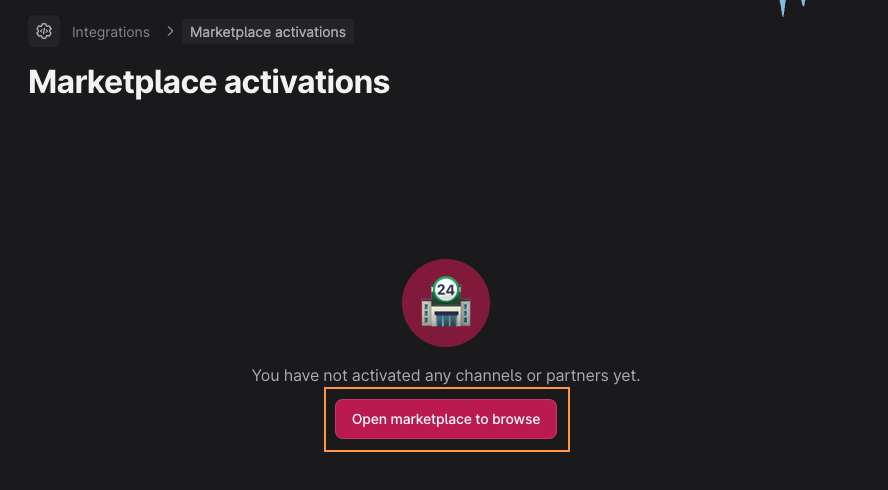
In Teamtailor, go to Settings -> Integrations -> Marketplace activations. Click Open marketplace to browse.
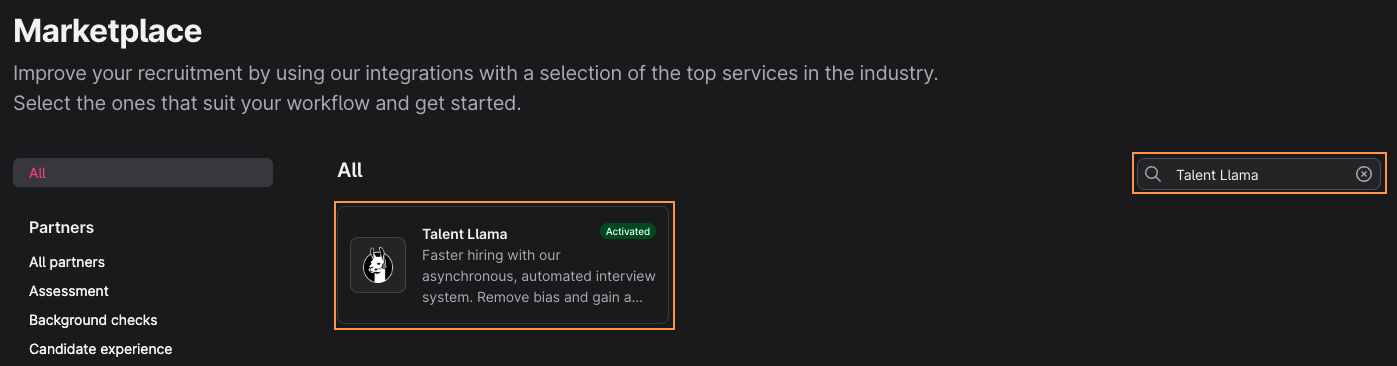
Search for Talent Llama using the search bar in the upper-right hand corner of the screen, then click Talent Llama.
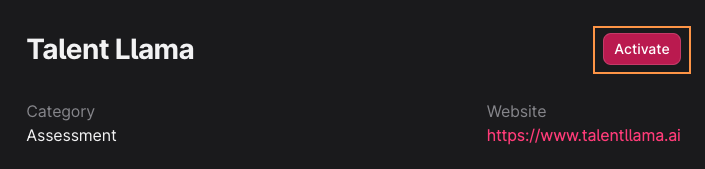
Click the Activate button in the upper-right hand corner.
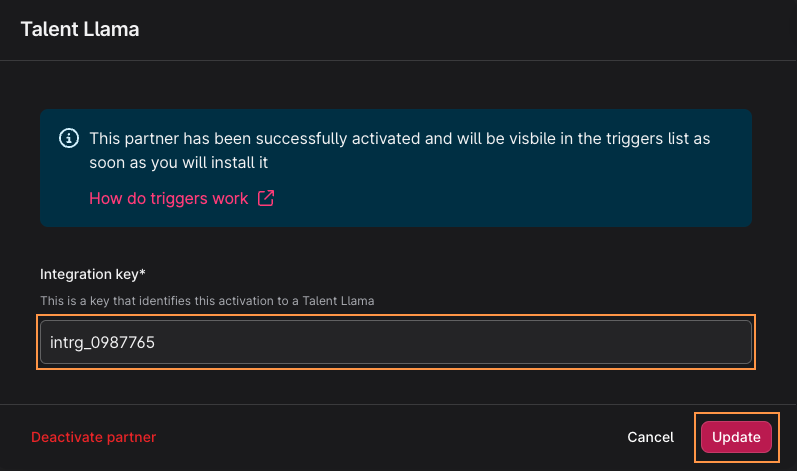
Enter the Integration Key that you copied from the previous step, then click Update.
Setting up Talent Llama Triggers (Per Job)
Now that your ATS is connected to Talent Llama, you can begin sending candidates to start their screening process.
While the integration setup above is a one-time task, you’ll need to create a trigger for each job to control which roles send candidates to Talent Llama. This ensures you decide which positions are included, for example, excluding C-suite or senior roles from automated screening, and including Individual Contributor roles.
Once you’ve done it once, setting up future triggers is fast and simple.
Sending Candidates to Talent Llama from Teamtailor
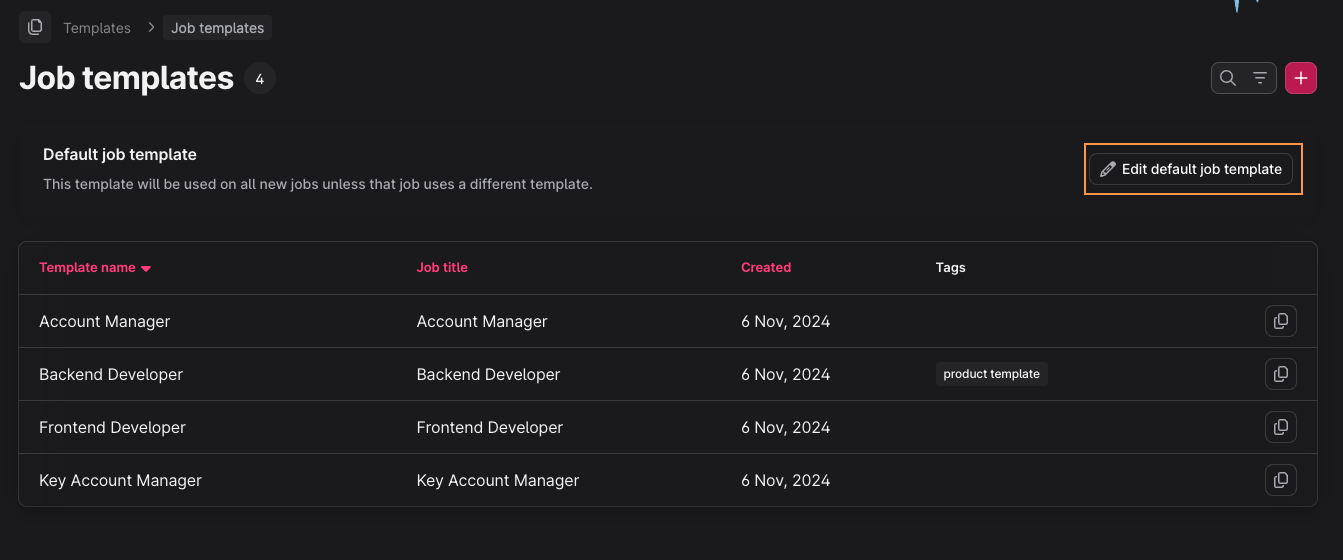
Step 1: In Teamtailor, go to Settings -> Templates -> Jobs. Here we can configure Talent Llama which stages send triggers. This can be configured for all new jobs by editing the default template, or selectively for existing jobs.
Let's start by configuring the default template. Click on the Edit default job template button.
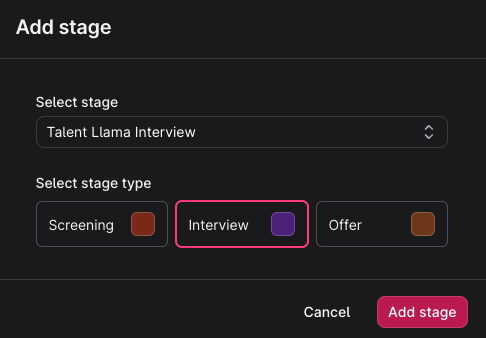
Click the Stages navigation on the left-hand side of the screen. Let's create a new Stage just for Talent Llama interviews. Click the Add Stage button.
Call the stage Talent Llama Interview, and select Interview as the Stage type. Then click Add stage.
Under the newly created stage click Stage actions, then select Triggers -> Send Talent Llama interview, and finally Add trigger.
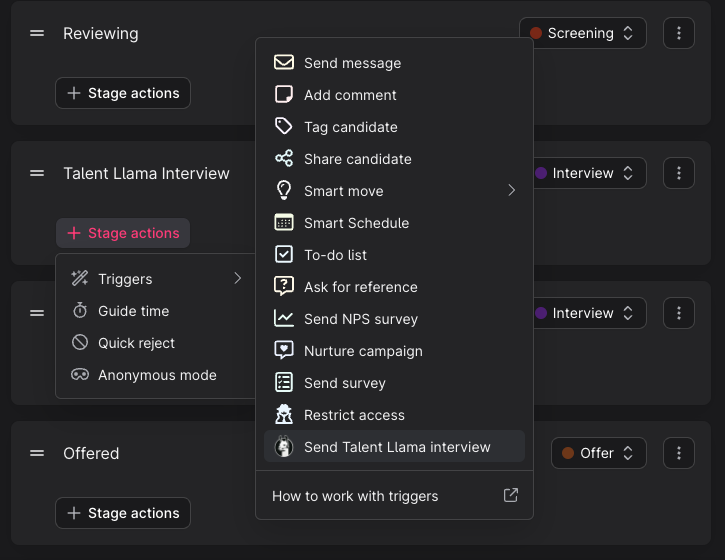
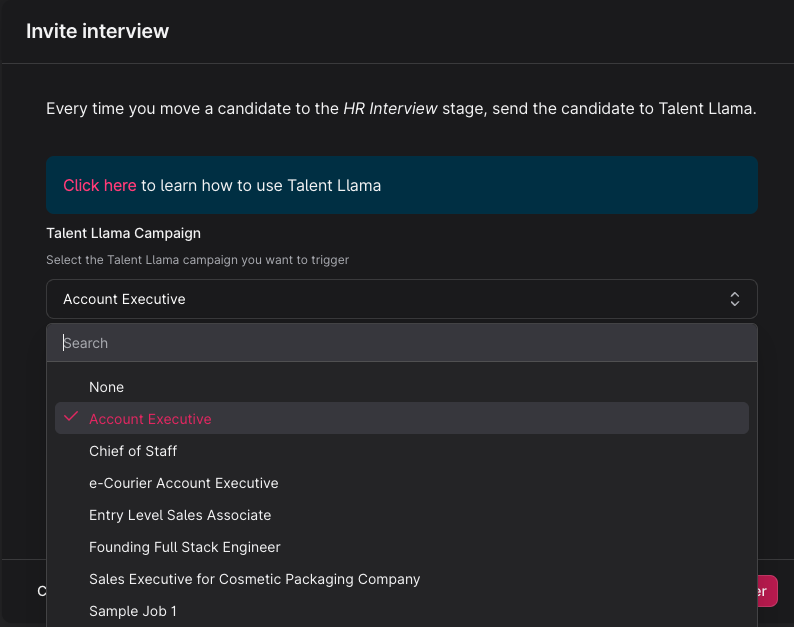
Select the Talent Llama Campaign you wish to trigger.
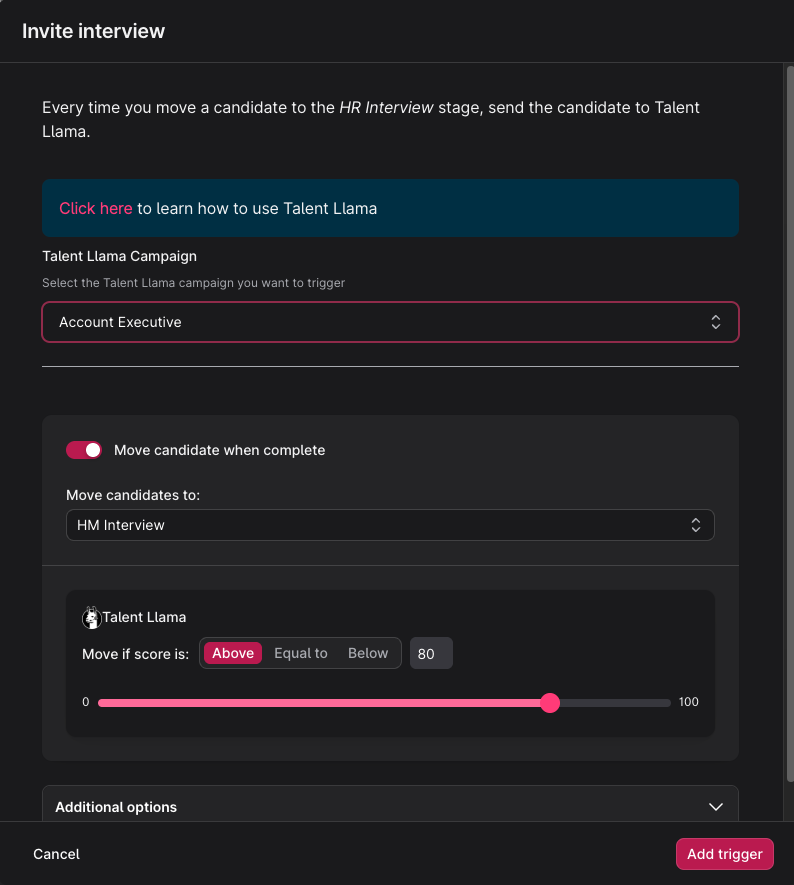
Optionally, you can configure Teamtailor to automatically move candidates into the next stage of the pipeline if they pass their Talent Llama interview with a certain score. To configure this:
- Enable the toggle for "Move candidate when complete".
- Using the "Move candidates to" dropdown, select the target stage to which passing candidates will be moved.
- Select the score criteria. NOTE: Talent Llama uses a scale of 0 - 100 while Talent Llama uses a scale of 0 - 10. A score of 8.5 in Talent Llama is equivalent to an 85 in Teamtailor.
Using the Talent Llama integration with Teamtailor
With your integration connected, Teamtailor will automatically send candidates to Talent Llama when they land in the stage for which you configured the trigger.
Turn on Automatic Invitations (Optional)
If you want full automation of interview invitations, you can configure Talent Llama to auto-send email invitations and or text messages when applicants are imported. Edit these settings under the Automation tab.

Update Applicant Status from Talent Llama Evaluation
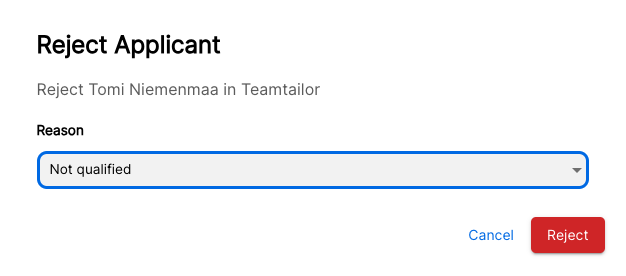
When applicants finish their interview, Talent Llama provides an instant evaluation. With the Talent Llama and Teamtailor Connection, you can modify the applicant’s status in Teamtailor directly from the Talent Llama evaluation. You’ll know an applicant is synced to Teamtailor from the logo and Interview Stage showing next to the applicant’s name.

Change Interview Stages: Select the Interview Stage you’d like to move the Applicant to and submit.

Reject: Select the Rejection Reason and submit.
View Talent Llama Evaluation Summary in Teamtailor
Applicant Status changes can be seen in Teamtailor immediately. Talent Llama will also push overall score as well as a link back to Talent Llama results.

That’s it, happy interviewing!
Additional resources
For additional information or troubleshooting not covered here, reach out to support@talentllama.com