
How To Manually Add Applicants
There are several ways to add Applicants into a Campaign, with the most popular being our ATS integrations. Which, in most cases, pull Applicants and can send their interview invites automatically.
However, if you don't have an ATS, this is for you.

Manual Upload Options
There are technically four types of upload options when it comes to manually adding applicants.
Those four are:
You can use any of these, even if you already have an ATS integration.

Where You Can Upload Applicants
There are two places from which you can upload your applicants. One location is prior to adding any applicants your Campaign (Newly Created Campaigns), and the other is after you've already added applicants (Live Campaigns) - both are technically located in the same place.
Live Campaigns
If your Campaign is active, and invites have been sent to some applicants already, you'll see a screen similar to the below.
When you click into your Campaign, and then click Applicants in the left menu, you'll see all your Applicants, their Interview Status, and more. In the top right corner, you'll be able to manually add additional Applicants. (Scroll down to see what each upload option means).

Newly Created Campaigns
If your Campaign has just been created, you'll see a screen like below. If not, click into your Campaign and then click Applicants. From there you'll be able to manually add Applicants. (Scroll down to see what each upload option means).
Options For Manually Adding Applicants
You have four options for how you can manually add Applicants, we'll take a look here.
Upload from My Computer
This option allows you to click and drag applicants' resumes from your computer directly into Talent Llama. We'll then pull candidate details (Name, Email, Phone Number etc) from the resume.

When you drag the resume into the system, you can add more in the top right by clicking + Add More. When you're ready, click Upload File

Talent Llama will quickly scan each resume, and a green tick will appear on the top right of the file. When it's finished, click Finished Uploading.

Import From CSV
This is a simple method for uploading applicants in bulk. You'll only need three columns, or four if you want their phone number uploaded too.
An example of the CSV layout is below.
| First Name | Last Name | Phone Number | |
|---|---|---|---|
| John | Smith | johnsmith@example.com | 9999999999 |
| Jane | Doe | j.doe@company.com | 9999999999 |
Click on Import From CSV, and then click and drag your CSV file into the window. Once it's ready to go, which should only take a second or two, click Upload CSV File in the bottom right.

You'll then do a simple mapping of columns, however Talent Llama will do a first attempt for you. Check all your columns are mapped correctly (First Name mapped to your First Name column etc). You'll also see you can upload more than just name and email, you can add LinkedIn URLs and Full Names too. These aren't necessary to launch candidates though, Name and Email is enough.

Once you're done mapping, click Import Applicants.
Manually Create Applicants
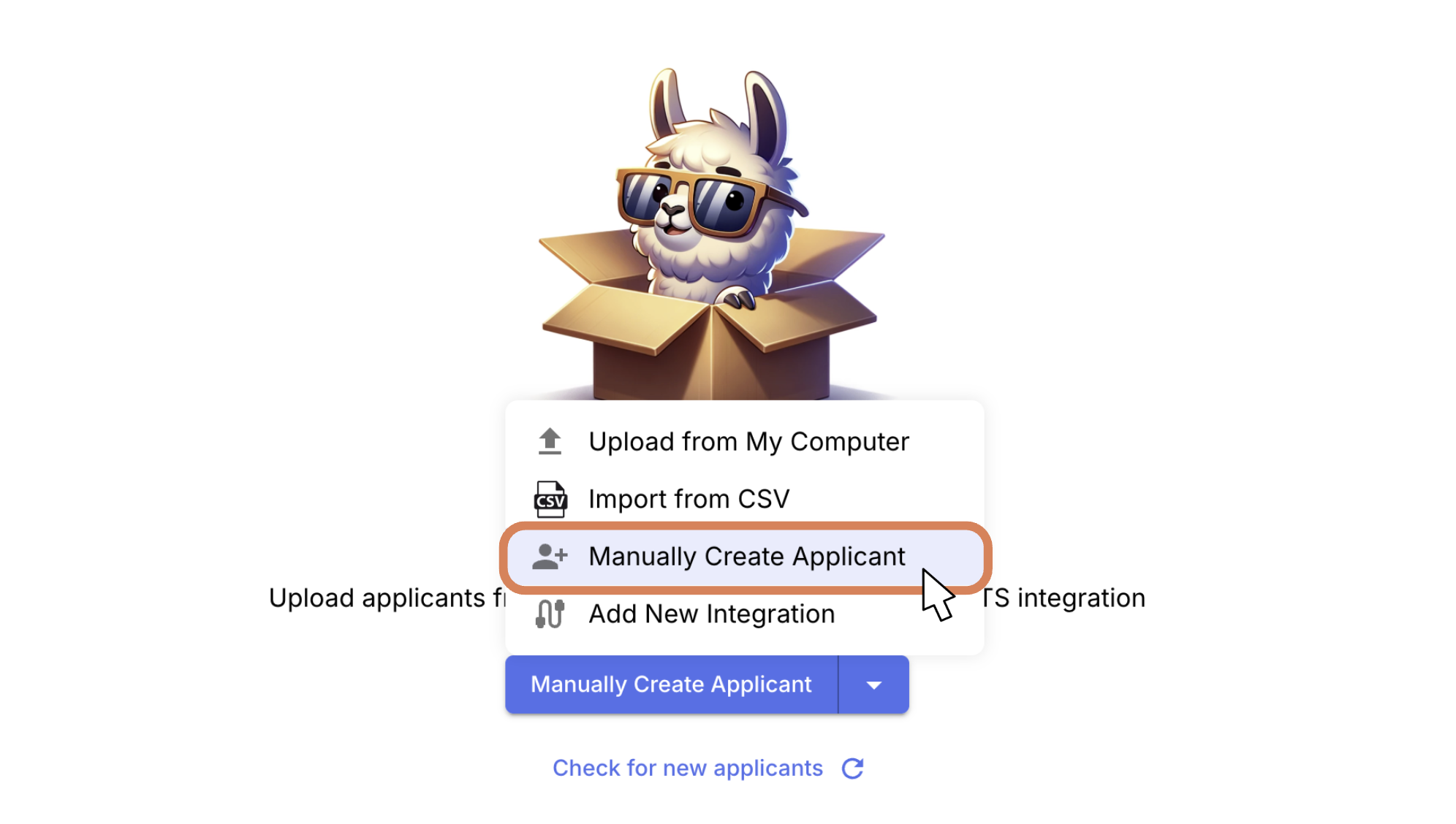
The third method is to manually create an applicant in the system. This is also how you would run a Test Campaign to see what your candidates see!
Click on Manually Create Applicant.
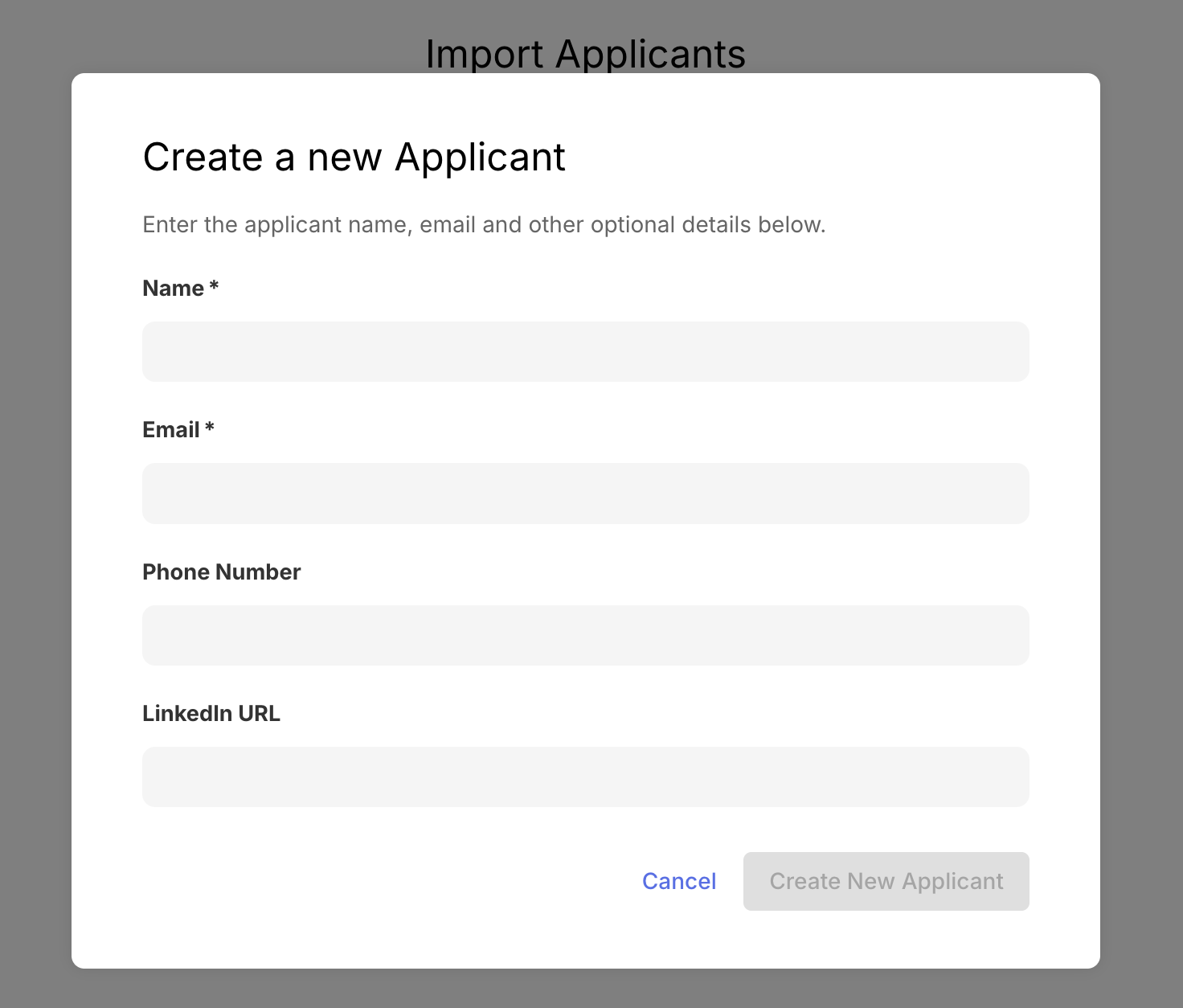
Then, enter the applicants details (again, you only need Name and Email, but you can add a phone number if you want to run text invites too!), and then click Create New Applicant.
Import by Email
Finally, you can also receive emails which will directly upload applicants too! If you don't have an ATS, but don't want to spend time manually uploading resumes or CSV's, you could attach this email address to the application itself, and set it up so when an applicant applies, it could automatically forward resume's to that email. (Each job board is unique, so ensure you check your systems capability).
As a recruiter, you can also just forward them over too! Theoretically you could also add the email address into the JD and have applicants do it themselves, but this isn't best practice.
Head into your Campaign, then click Settings, then copy the Applicant Import by Email address. Remember, the email address is unique for each Campaign.

All these methods will give you a quick and easy manually option for getting your invites out to applicants, especially if you don't have an ATS yet! (Let us know if you need a recommendation!)
If you have questions, reach out to support@talentllama.com for help.