
Talent Llama + Ashby Integration
Talent Llama’s integration with Ashby streamlines the entire hiring workflow by automatically syncing candidates between platforms. Hiring teams can import and invite candidates to interview from any stage in the Ashby pipeline, eliminating manual exports and triggering AI interviews at the right time.
As interviews are completed, results and candidate statuses flow instantly back to Ashby, keeping it as the single source of truth. Your recruiters can review evaluations, advance top candidates, or reject directly from Talent Llama. The result: less admin, faster screening, and a smoother experience for both teams and candidates.
Note: Talent Llama utilizes Ashby's Assessment API meaning you can report and filter on applicant results directly within Ashby.
Before you begin: Like anything worth doing, integrations can take a little time. We don't anticipate it taking more than 30 minutes, but you might want to have a system expert and/or system administrator to assist in the completion of this integration.
Connect Ashby to Talent Llama
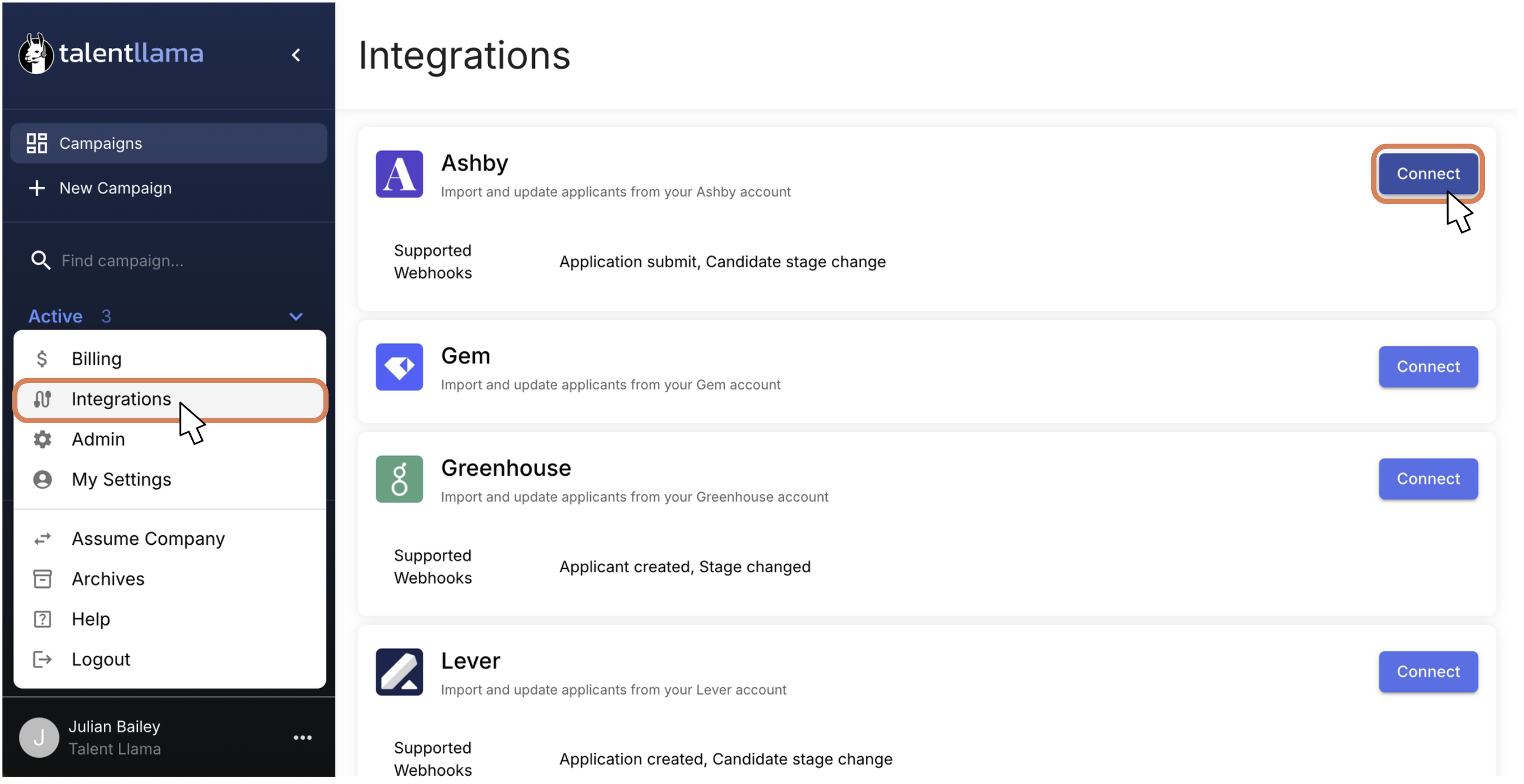
Step 1: In the bottom-left corner, click the three dots ( ⋯ ), select Integrations, then click Connect next to Ashby to start the integration.
To connect Talent Llama with Ashby, you’ll need to create an Ashby API Key.

Create an API key
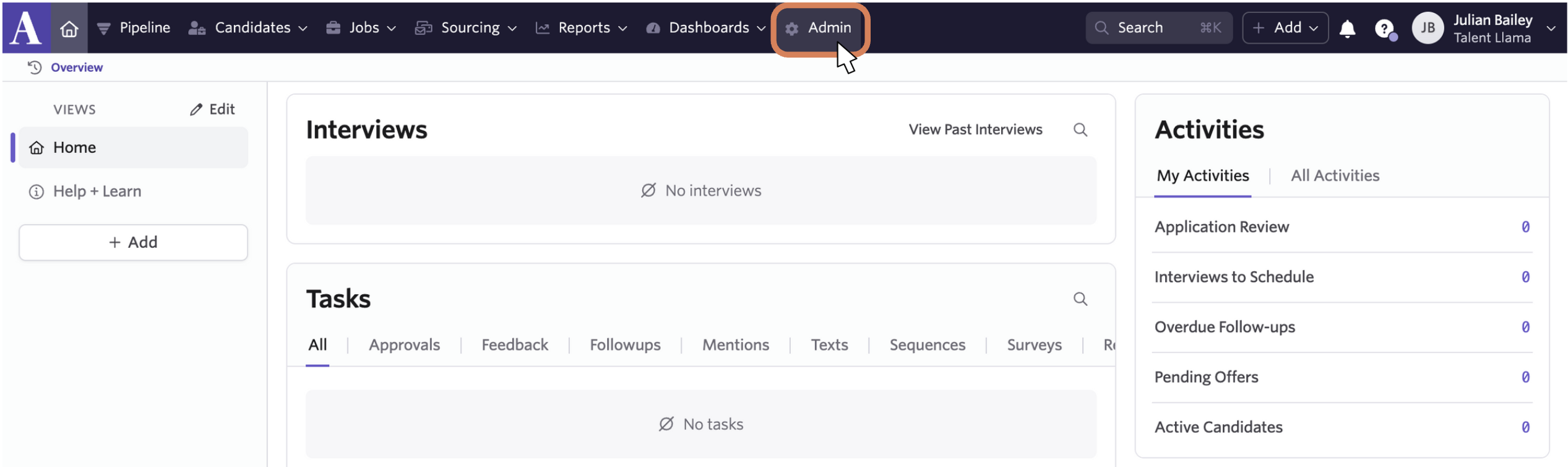
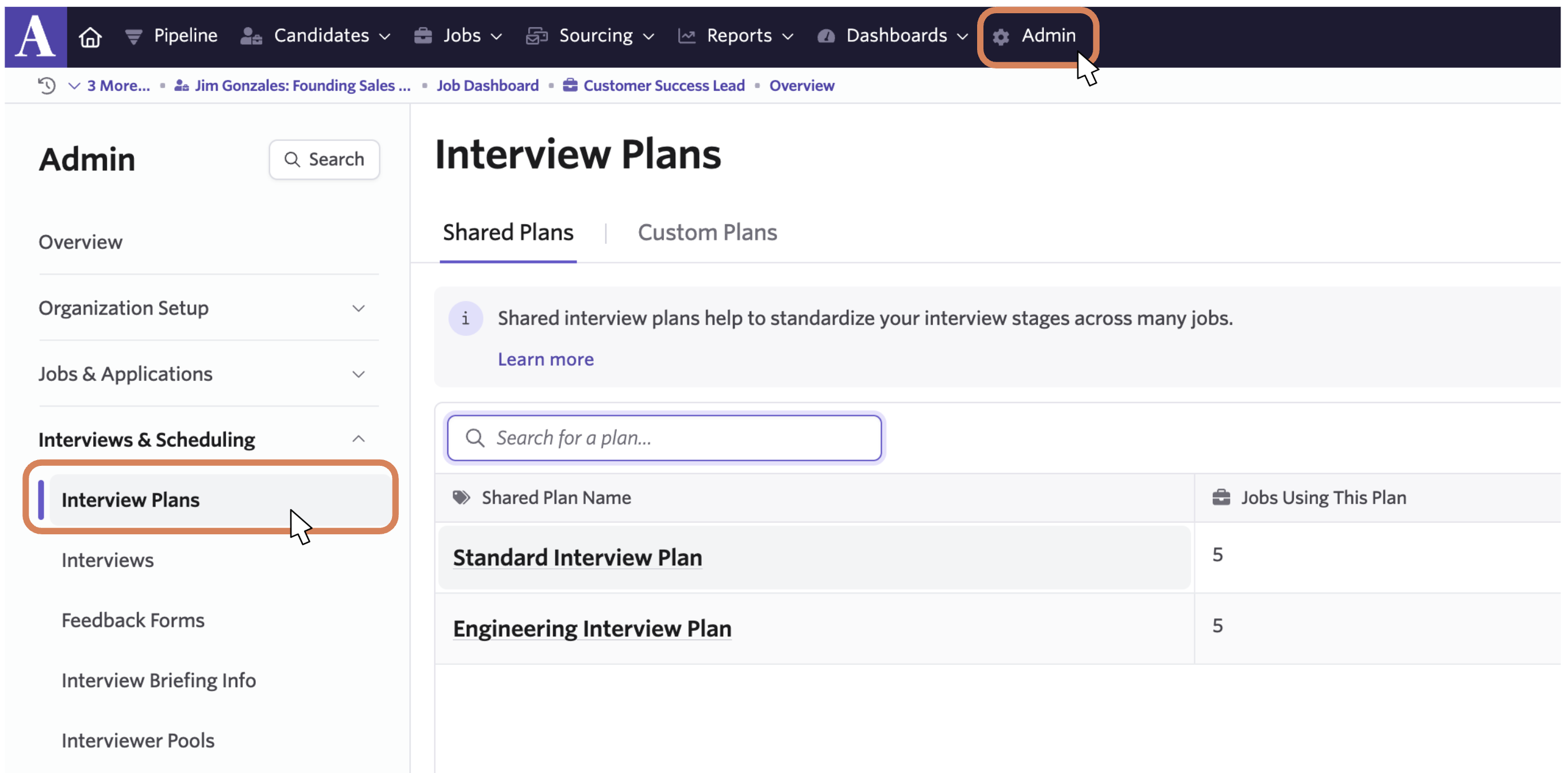
In Ashby, click on Admin in the top menu.
Click API Keys > + New > Select the integration partner Talent Llama
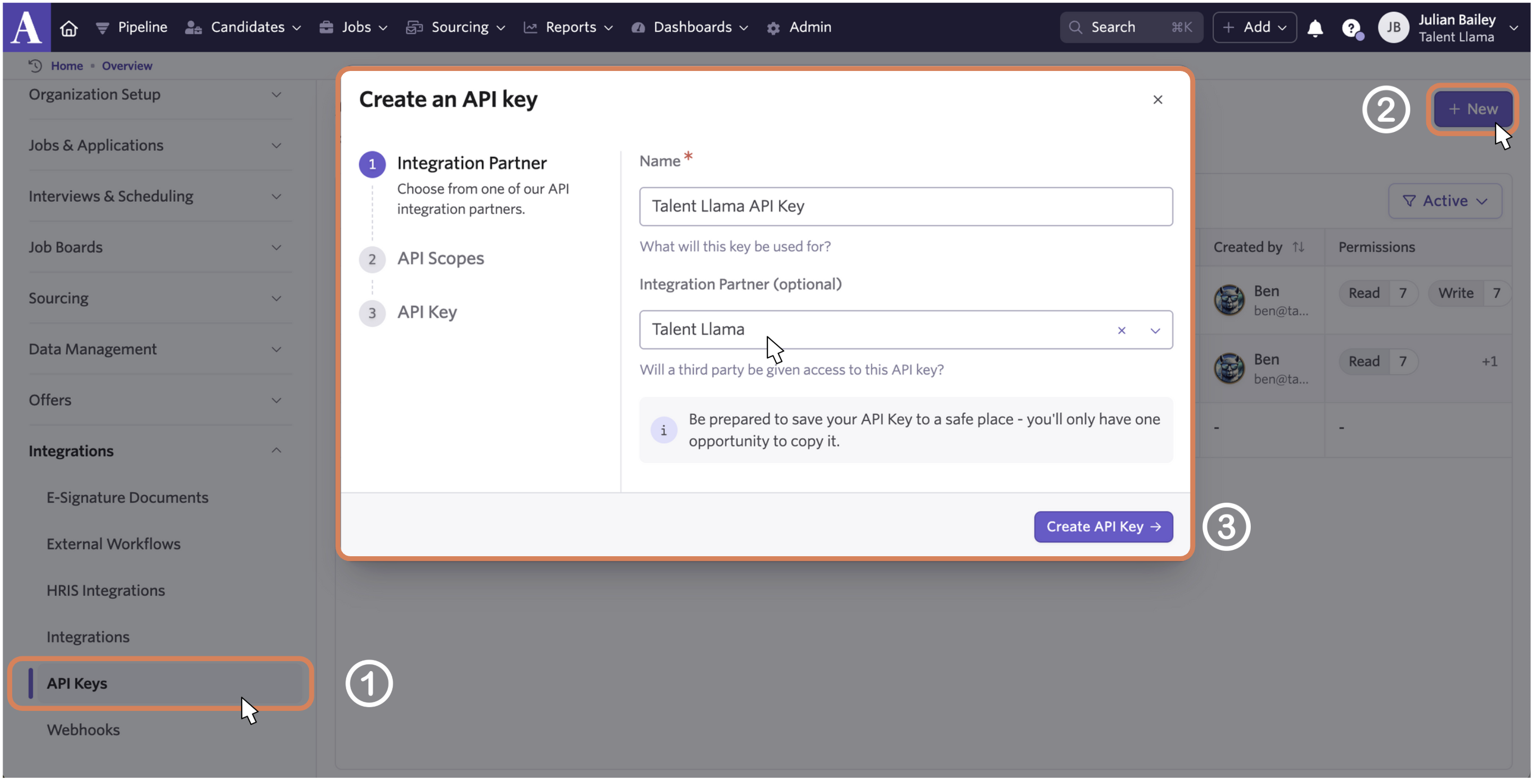
You shouldn't need to select which API Scopes are being used in the API, as we're built that into the integration for you, however, for your reference, we've preselected all API Scopes except for Approvals and Reports. (This is so you can trigger the Talent Llama process from any module in Ashby).
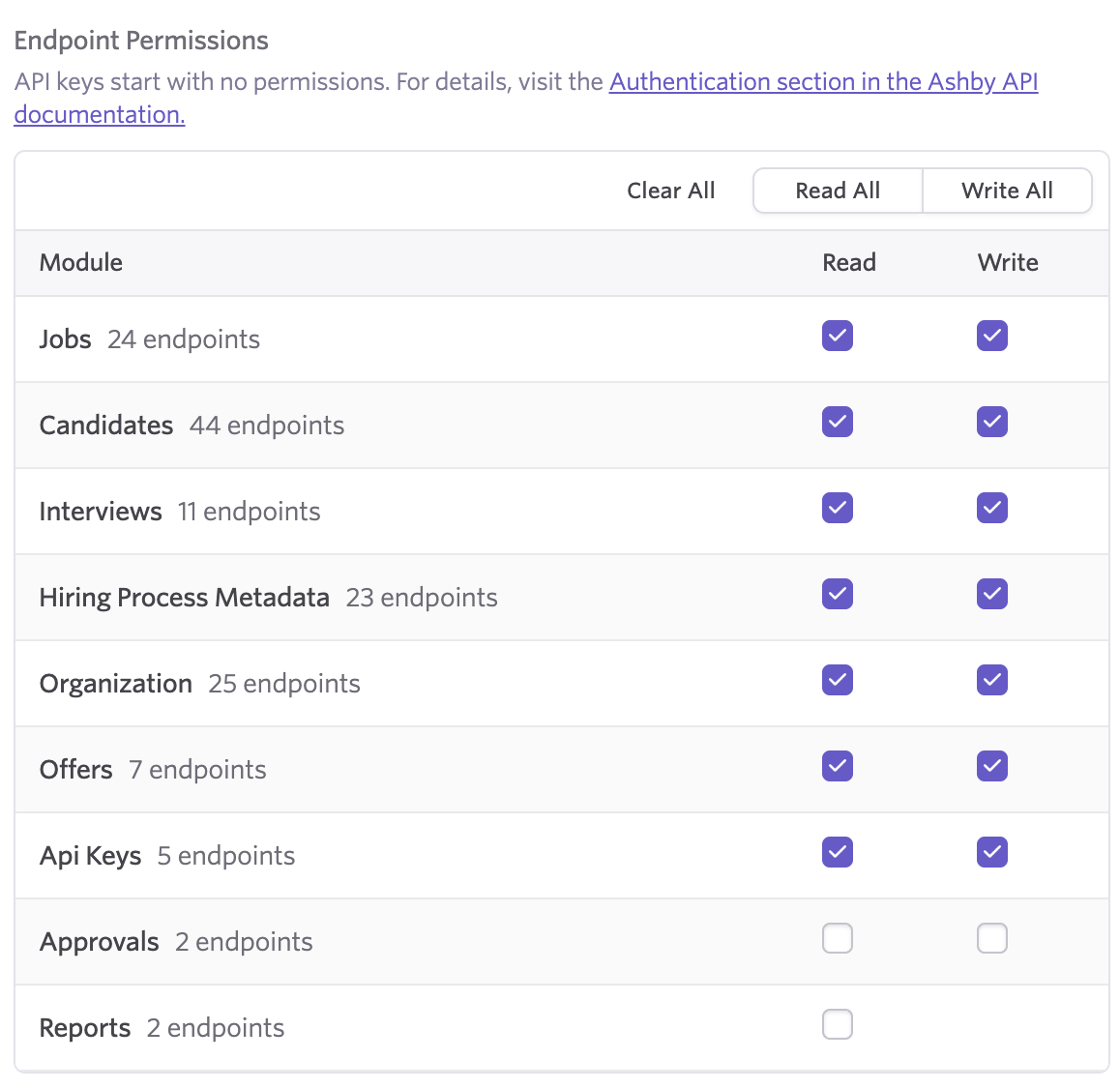
Step 3: Once you have the API Key, in Talent Llama, enter this value in the API Key field. Then click Save.
You will see ‘Disconnect’ and ‘Edit’ buttons if connected correctly.

Enable Automated Push to Talent Llama from Ashby
In Admin > Interviews & Scheduling within Ashby, you'll see Interview Plans on the left side. In here, you can set up which Application Stage will send Applicants to Talent Llama.
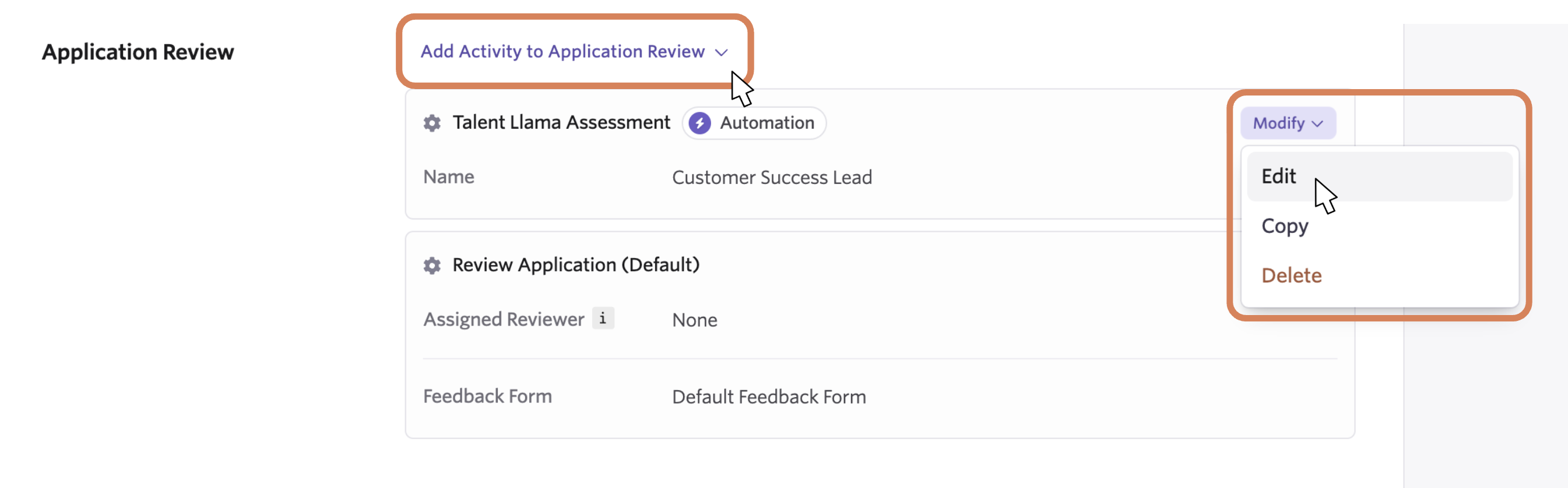
To add this, find the Interview Plan > Stage you want to enable the Talent Llama screening on (Application Review for example). Then click Add Activity to [Your Stage Choice] and select Talent Llama Assessment.
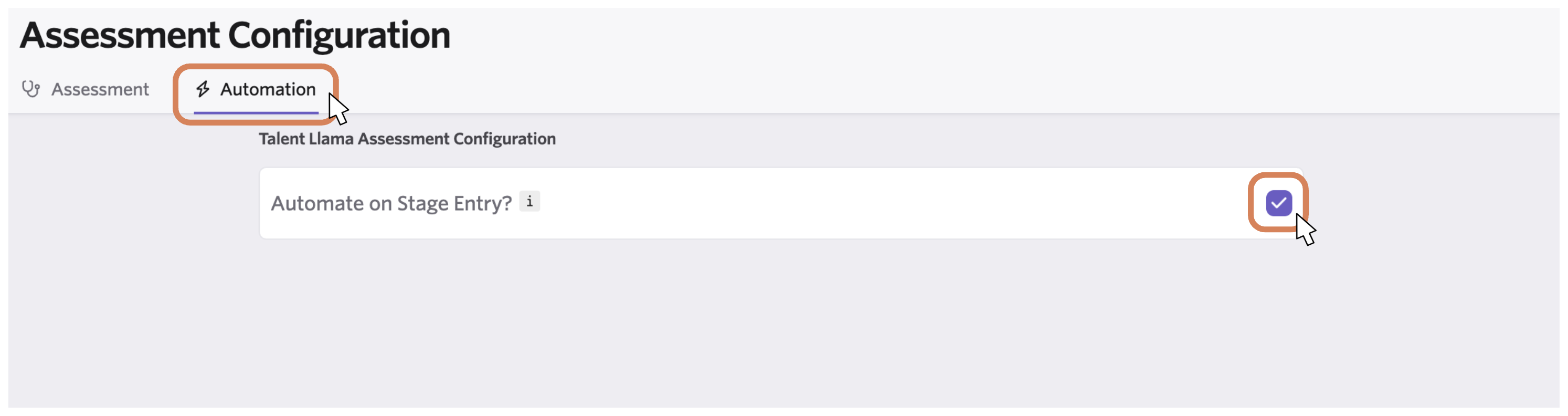
Once you see Talent Llama Assessment in your chosen Stage, the final step to automate applicants being sent to Talent Llama is to click Modify > Edit;
Then click Automation and ensure Automate on Stage Entry is checked. This will ensure that all new applicants get sent to Talent Llama automatically.
Use the Talent Llama integration with Ashby
With your integration connected, you can now send Talent Llama interview invitations when candidates first apply or when they move into one or more stages.
Import Applicants from Ashby

- From the Applicants tab, click the button to the right that says Import from Ashby
- Find the Job from Ashby by typing the job name
- Select the Job from which you want to import applicants
- Select one or more Stages from which you want to import applicants
- Click Start Import
- Check the status of any import by clicking the Import History button at the top of the Applicants tab

Turn on Automatic Invitations (Optional)
If you want full automation of interview invitations, you can configure Talent Llama to auto-send email invitations when applicants are imported. Make sure to review your Email Invitation content under Account Settings before activating.

Edit Linked Job Interview Stages
If you’ve made a mistake when selecting Interview Stages, or changed your hiring workflow, you can edit the Interview Stages that will be synced with Talent Llama. When applicants move into one of these Interview Stages, their application will automatically be imported into Talent Llama.
Update Applicant Status from Talent Llama Evaluation
When applicants finish their interview, Talent Llama provides an instant evaluation. With the Talent Llama and Ashby Connection, you can modify the applicant’s status in Ashby directly from the Talent Llama evaluation. You’ll know an applicant is synced to Ashby from the logo and Interview Stage showing next to the applicant’s name.

Change Interview Stages: Select the Interview Stage you’d like to move the Applicant to and submit

Archive (Reject): Select the Archive Reason, add an optional note, and submit

View Talent Llama Evaluation Summary in Ashby
Applicant Status changes can be seen in Ashby immediately. Talent Llama will also push evaluation results to the Ashby Activities & Progress using their Assessment API.

That’s it, happy interviewing!
Additional resources
For additional information or troubleshooting not covered here, reach out to support@talentllama.com